

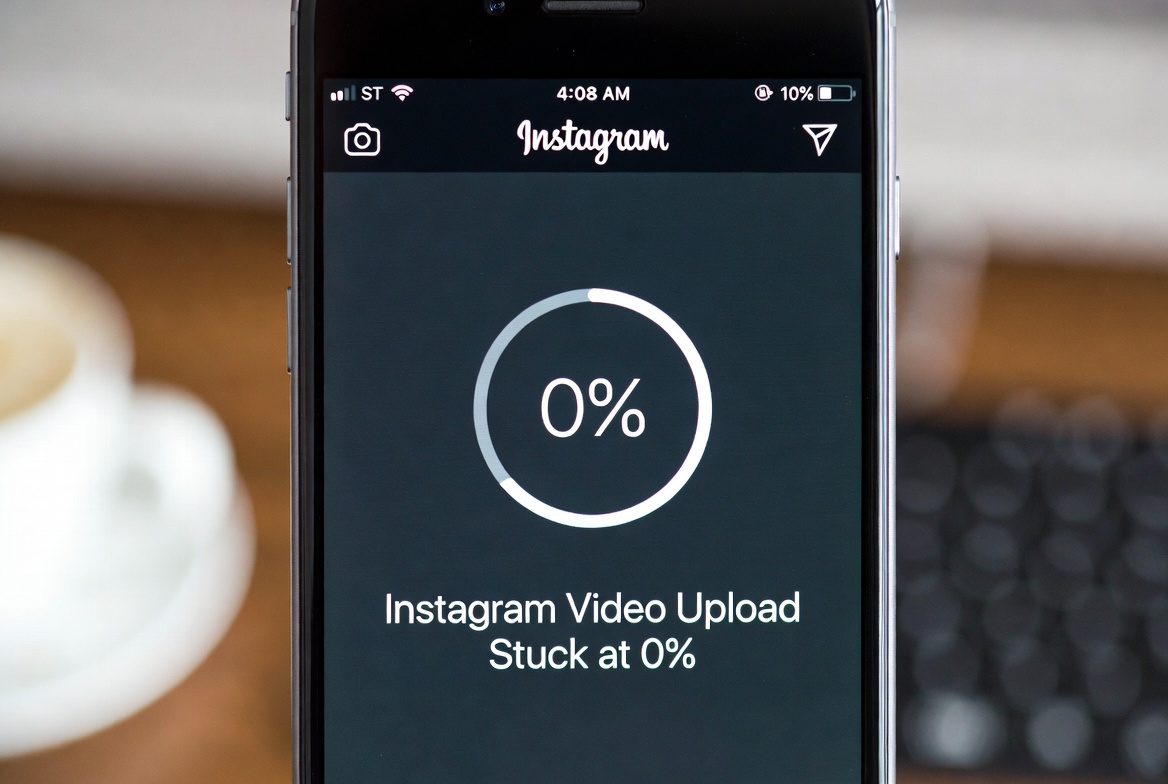
If your Instagram video upload is stuck at 0%, you’re not alone. This is a common issue that can happen on both Android and iPhone, and it usually has more than one possible cause. The good news is that in most cases, the problem can be fixed with a few simple steps.
Below, we’ll explain why this happens and how to fix it step by step.
Why Instagram Video Upload Gets Stuck at 0%
When Instagram can’t start uploading a video, it usually means the app is having trouble sending data to its servers. The most common reasons include:
- Weak or unstable internet connection
- Video file is too large or unsupported
- Instagram app cache is corrupted
- Background data usage is restricted
- Temporary Instagram server issues
Sometimes, the upload doesn’t fail completely — it just never moves past 0%.
How to Fix Instagram Video Upload Stuck at 0%
1. Check Your Internet Connection
Make sure your connection is stable.
- Switch from Wi-Fi to mobile data (or vice versa)
- Turn Airplane Mode on for 10 seconds, then turn it off
- Avoid public or weak Wi-Fi networks
2. Restart the Instagram App
Close Instagram completely and reopen it.
- On Android: Force stop the app
- On iPhone: Swipe it away from recent apps
This clears temporary glitches.
3. Clear Instagram Cache (Android)
Corrupted cache files often cause upload issues.
- Go to Settings → Apps → Instagram
- Tap Storage
- Select Clear Cache
⚠️ Do not clear data unless necessary.
4. Check Video Size and Format
Instagram may struggle with large or unsupported videos.
- Try uploading a shorter video
- Make sure the format is MP4
- Avoid very high resolutions or frame rates
Compressing the video often helps.
5. Disable Data Saver or Battery Optimization
Instagram needs background access to upload videos.
- Turn off Data Saver
- Disable Battery Optimization for Instagram
- Allow background data usage
6. Update Instagram
Outdated app versions can cause upload bugs.
- Open App Store or Google Play
- Update Instagram to the latest version
7. Log Out and Log Back In
Refreshing your session can fix stuck uploads.
- Log out of your account
- Restart your phone
- Log back in and try again
Extra Tips
- Try uploading the video as a Reel instead of a post
- Upload at a different time (servers may be busy)
- Restart your phone before retrying
- If nothing works, wait a few hours — it may be a server-side issue
Final Thoughts
An Instagram video stuck at 0% is frustrating, but in most cases, it’s caused by connection issues, app glitches, or video size limitations. Going through the steps above usually solves the problem quickly.
If the issue keeps happening, keeping Instagram updated and using a stable internet connection will prevent it in the future.


