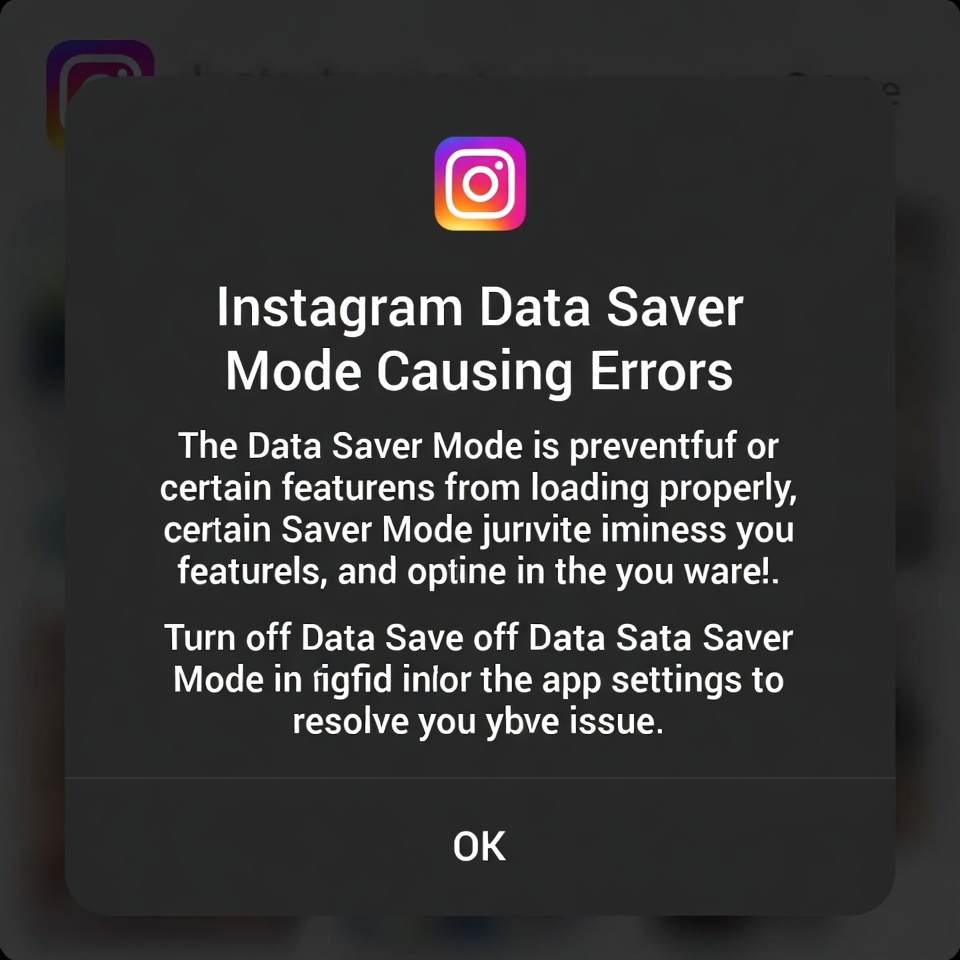
Instagram’s Data Saver Mode is designed to reduce mobile data usage, but in many cases it can cause unexpected problems. Users often report posts not loading, stories stuck, reels not playing, or even connection errors while Data Saver is enabled.
This happens because Data Saver limits background data, image preloading, and video buffering — all of which Instagram heavily relies on for smooth performance.
> Instagram Won’t Connect to Internet Error
How to Fix Instagram Errors Caused by Data Saver Mode
1. Turn Off Data Saver Inside Instagram
This is the most effective fix.
Steps:
- Open Instagram
- Go to Profile → Menu (☰) → Settings & Privacy
- Tap Data Usage
- Disable Data Saver
Restart the app after turning it off.
2. Disable System-Level Data Saver (Android)
Even if Instagram’s own Data Saver is off, your phone’s system setting can still interfere.
Android path (may vary):
- Settings → Network & Internet → Data Saver → Turn Off
3. Allow Background Data for Instagram
Restricted background data can cause loading and sync issues.
- Settings → Apps → Instagram → Mobile Data
- Enable:
- Allow background data
- Allow data usage while Data Saver is on
4. Clear Cache (Safe Fix)
Corrupted cached files can make Data Saver issues worse.
- Settings → Apps → Instagram → Storage
- Tap Clear Cache (⚠️ do NOT clear data)
5. Switch Network & Test
Try:
- Mobile data → Wi-Fi
- Wi-Fi → Mobile data
If the issue disappears, Data Saver is confirmed as the cause.