

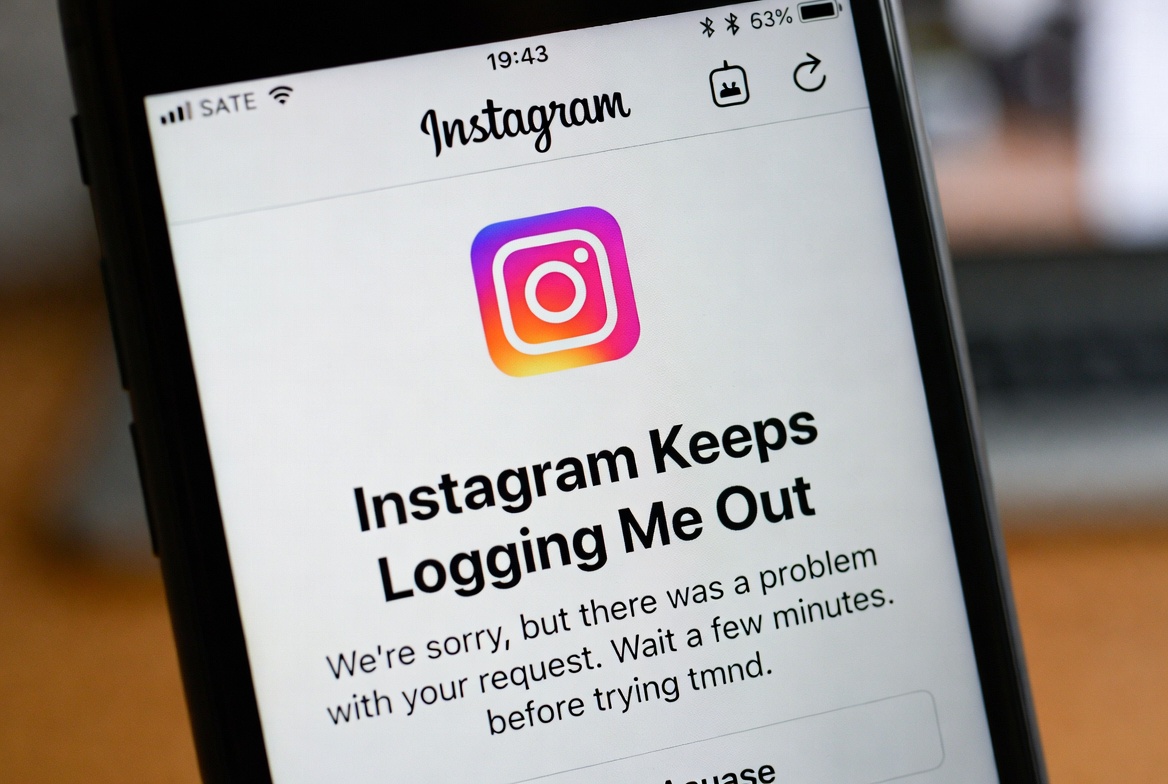
If Instagram keeps logging you out without warning, it can be frustrating—especially when it happens multiple times a day. This issue usually points to account security checks, app conflicts, or session-related problems rather than a simple bug.
Let’s break down why this happens and how to fix it step by step.
Why Instagram Keeps Logging You Out
There isn’t just one cause. Instagram automatically logs users out when it detects unusual behavior or technical conflicts. The most common reasons include:
- Suspicious login activity detected by Instagram
- Using third-party apps or automation tools
- Corrupted app data or outdated app version
- Logging in from multiple devices frequently
- Instagram server-side security resets
Understanding the root cause is key to stopping the issue permanently.
Common Reasons Behind the Issue
1. Suspicious Login Activity
If you log in from different locations, devices, or IP addresses in a short time, Instagram may force a logout to protect your account.
2. Third-Party Apps Connected to Your Account
Apps like followers trackers, automation tools, or analytics services often violate Instagram’s policies and trigger forced logouts.
3. Corrupted App Cache or Data
Over time, cached session files can break, causing Instagram to lose authentication data and log you out.
4. Using Multiple Accounts on One Device
Switching between several Instagram accounts frequently can confuse session tokens and lead to repeated logouts.
5. Instagram Security or Server Issues
Sometimes the problem isn’t on your end. Instagram may reset sessions during security updates or server maintenance.
How to Fix Instagram Logging You Out Repeatedly
Step 1: Change Your Password Immediately
This resets all active sessions and removes unauthorized access.
- Use a strong, unique password
- Avoid reusing passwords from other platforms
Step 2: Remove Third-Party Apps
Go to:
Settings → Security → Apps and Websites
Remove anything you don’t fully trust, especially:
- Follower trackers
- Auto-like or auto-comment tools
Step 3: Clear App Cache (Android)
- Go to Settings → Apps → Instagram
- Tap Storage
- Clear Cache (not data unless needed)
For iPhone users, reinstalling the app works better.
Step 4: Update or Reinstall Instagram
- Make sure you’re using the latest version
- If the issue persists, uninstall and reinstall the app
This refreshes session files completely.
Step 5: Log Out from All Devices
From Instagram:
Settings → Security → Login Activity
Log out of any unfamiliar or unused devices.
Step 6: Avoid Rapid Account Switching
If you manage multiple accounts:
- Slow down switching frequency
- Avoid logging in/out repeatedly in short periods
When the Problem Usually Stops
In most cases, the issue resolves within 24–48 hours after:
- Removing third-party apps
- Resetting your password
- Using only one trusted device
If it continues longer, it’s likely a temporary account restriction, which usually fixes itself automatically.
Can This Be a Shadow Restriction?
No. Being logged out repeatedly is not a shadowban.
It’s a security or session issue, not a visibility penalty.
Final Notes
If Instagram keeps logging you out, it’s usually trying to protect your account—not punish it. Once suspicious activity stops and your session stabilizes, the problem disappears on its own


