

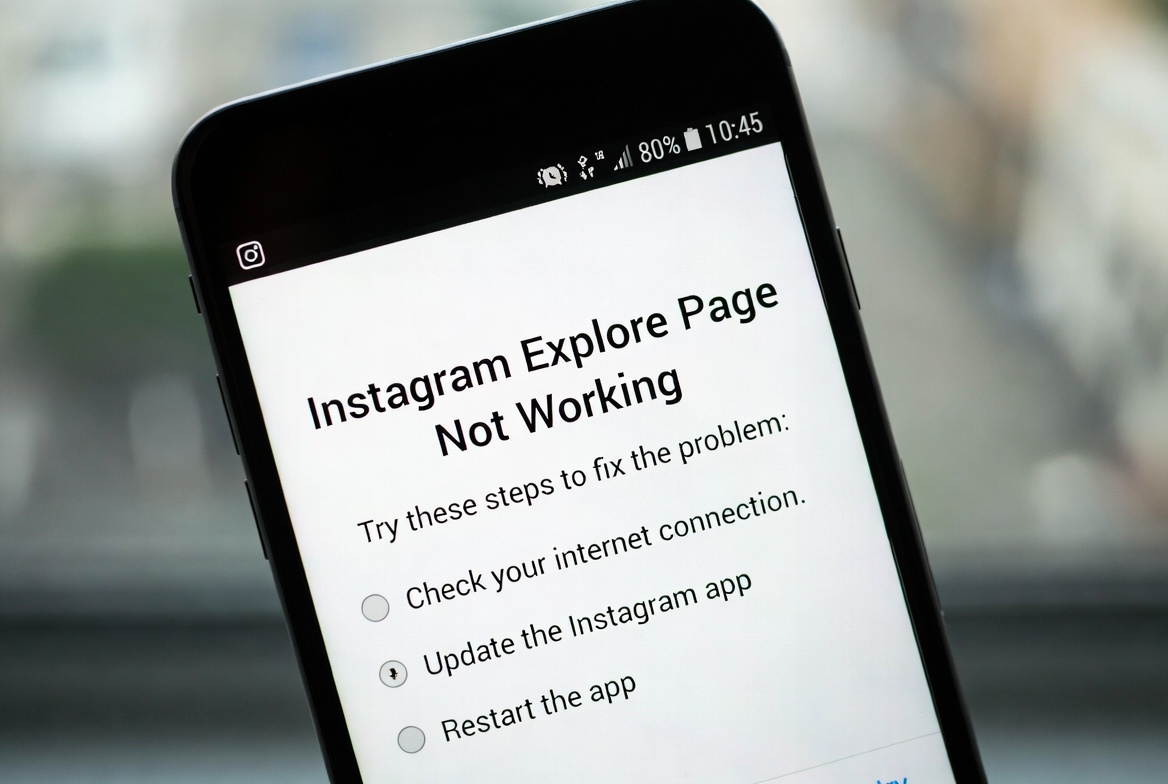
If your Instagram Explore page not working, not loading, or showing irrelevant content, you’re not alone. This issue can happen due to app glitches, network problems, or temporary Instagram system changes.
Here’s a complete guide to understand why it happens and how to fix it.
What the Error Looks Like
- Explore page won’t load
- Blank or black Explore screen
- Explore page stuck on loading
- Explore showing repeated or unrelated posts
Why This Happens
The Instagram Explore page may stop working because of:
- Slow or unstable internet connection
- Temporary Instagram server issues
- Corrupted app cache
- Outdated Instagram app version
- Account activity limits or restrictions
- Recent changes in user behavior or interests
How to Fix Instagram Explore Page Not Working
1. Check Your Internet Connection
- Switch between Wi-Fi and mobile data
- Restart your router
- Turn Airplane Mode on for 10 seconds, then off
2. Restart Instagram
- Fully close the app
- Reopen it and check the Explore page again
3. Log Out and Log Back In
- Go to Instagram → Settings
- Log out of your account
- Restart your phone
- Log back in
4. Clear Cache (Android Only)
- Settings → Apps → Instagram
- Storage → Clear Cache
This often fixes Explore-related glitches.
5. Update Instagram
- Go to the App Store or Google Play Store
- Install the latest version of Instagram
6. Reset Explore Recommendations
Your Explore page adapts to your behavior.
To reset it:
- Search for and interact with new content
- Mark irrelevant posts as “Not Interested”
- Stop engaging with unwanted content
7. Disable VPN
VPNs can interfere with Instagram’s content delivery.
- Turn off VPN
- Restart Instagram
8. Reinstall Instagram
If the issue continues:
- Uninstall Instagram
- Restart your device
- Reinstall and log in
Extra Tips
- Avoid rapid liking or following activity
- Check if Explore works on another account
- Monitor Instagram’s official channels for outages
Final Thoughts
When the Instagram Explore page stops working, it’s usually due to temporary glitches or connection issues. In most cases, following these steps will restore it quickly.


