

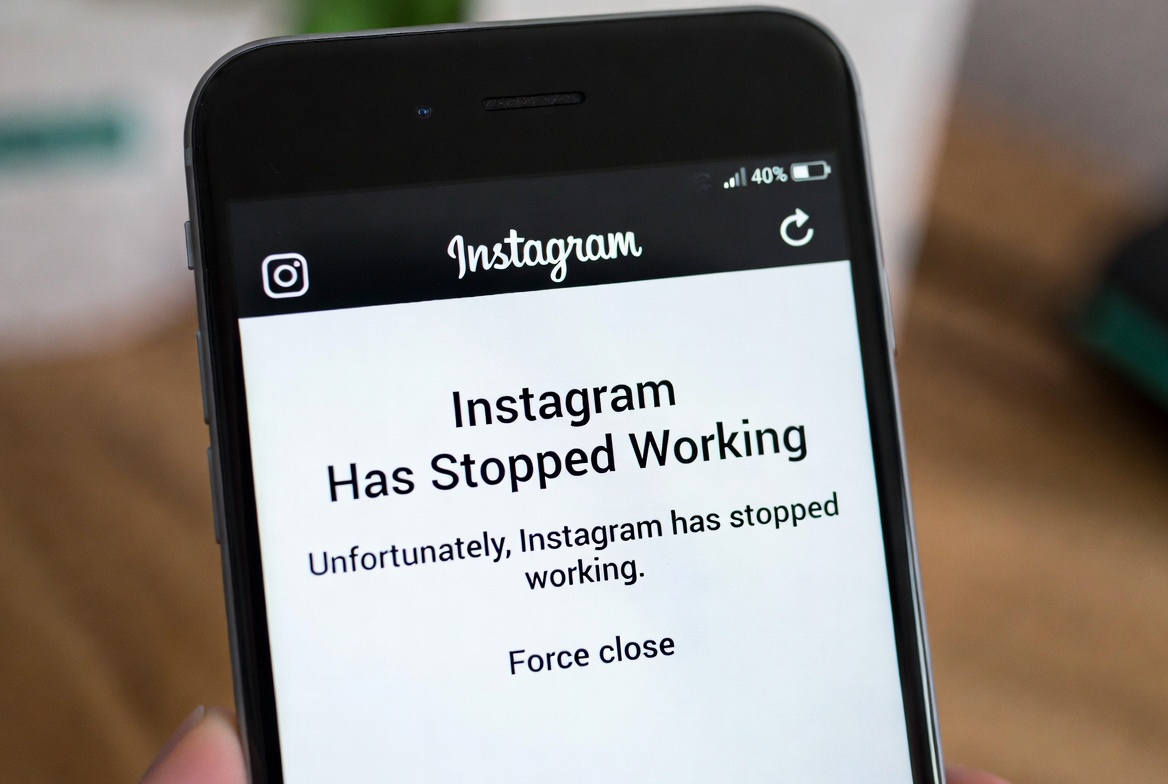
If your Instagram app keeps crashing on Android and shows the “Instagram Has Stopped Working” message, it can get annoying very quickly.
One moment everything seems normal, and the next, the app closes on its own — sometimes right after opening, sometimes while scrolling.
In this post, we’ll break down what usually causes this error on Android and go through the fixes that actually make a difference.
Nothing complicated — just clear explanations and practical steps you can try right away.
How to Fix Instagram Has Stopped Working on Android
Try these solutions in order. You don’t need to do all of them — in many cases, one or two are enough.
1. Restart Your Phone
It sounds simple, but restarting clears temporary system glitches and background processes that may be crashing Instagram.
2. Update Instagram
Open the Google Play Store and check if an update is available.
Installing the latest version often fixes crash-related bugs.
3. Clear Instagram Cache
- Go to Settings
- Tap Apps or App Manager
- Select Instagram
- Tap Storage
- Choose Clear Cache
Do not clear data yet — cache alone is usually enough.
4. Check for Android System Updates
Go to Settings > Software Update and make sure your phone is running the latest Android version.
5. Free Up Storage Space
If your storage is almost full, delete unused apps, old photos, or large files.
Instagram needs free space to work smoothly.
If Instagram Still Keeps Crashing
If none of the quick fixes worked, try these extra steps:
Reinstall Instagram
Uninstall Instagram completely, restart your phone, then reinstall it from the Play Store.
Disable Battery Optimization for Instagram
Some Android phones aggressively limit background apps.
- Go to Settings > Battery
- Find App Optimization
- Set Instagram to Not Optimized
Remove Recently Installed Apps
If the problem started after installing a new app, that app might be causing a conflict. Try removing it and test Instagram again.
When Will This Error Go Away?
In many cases, the issue disappears after an app or system update.
If it’s caused by a temporary Instagram bug, the fix may come from Instagram’s side within a few hours or days.


