

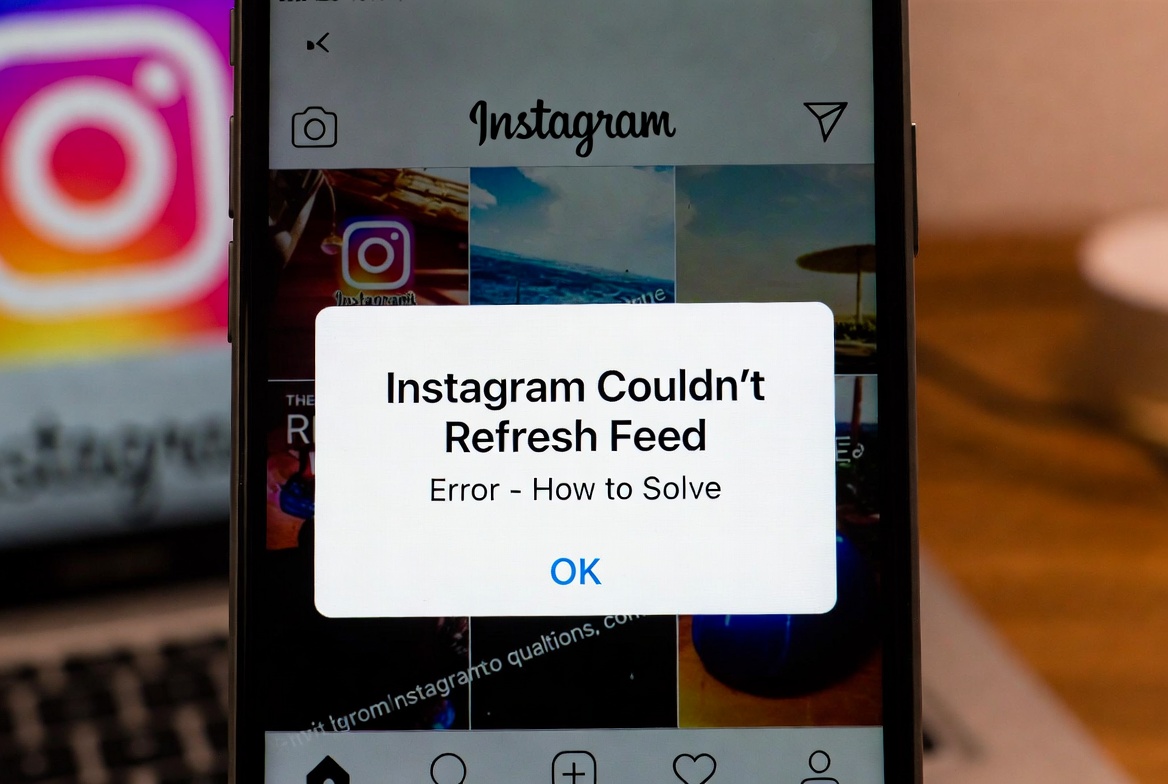
If you see the “Couldnt Refresh Feed” error on Instagram, you’re not alone.
This is one of the most common Instagram problems and it can happen suddenly, even if everything was working fine before.
In this guide, we’ll explain why this error happens and how to fix it step by step.
What Does “Couldnt Refresh Feed” Mean?
This error usually appears when Instagram fails to load new posts.
You may see a blank screen, old posts only, or a constant loading circle.
It can happen on:
- Android
- iPhone
- Wi-Fi or mobile data
Why This Happens
There isn’t just one reason. The most common causes are:
- Weak or unstable internet connection
- Instagram server issues
- Corrupted app cache
- Outdated Instagram app
- Account-related restrictions or temporary blocks
- VPN or proxy interference
How to Fix Instagram Couldnt Refresh Feed Error
1. Check Your Internet Connection
Switch between Wi-Fi and mobile data.
If possible, restart your router.
A slow or unstable connection is the number one cause of this error.
2. Restart the Instagram App
Fully close Instagram (don’t just minimize it), then open it again.
Sometimes the app simply gets stuck in the background.
3. Clear Instagram Cache (Android)
If you’re using Android:
- Go to Settings
- Tap Apps
- Select Instagram
- Tap Storage
- Tap Clear Cache
Do not clear data unless necessary.
4. Update Instagram
Go to the App Store or Google Play Store and check for updates.
Older versions of Instagram often stop syncing properly with Instagram’s servers.
5. Log Out and Log Back In
Logging out refreshes your session.
- Go to Settings
- Tap Log Out
- Close the app
- Open it again and log in
6. Check If Instagram Is Down
Sometimes the problem is not on your side.
You can check:
- Downdetector
- Twitter/X for Instagram outage reports
If servers are down, you’ll need to wait.
7. Disable VPN or Proxy
If you’re using a VPN, turn it off and try again.
Instagram may block certain IP addresses, causing feed loading issues.
Extra Tips
- Avoid using third-party Instagram apps
- Don’t like or follow too many accounts in a short time
- Make sure your phone’s date and time are set automatically
- Try logging in from another device to check if it’s account-related
Final Thoughts
The Instagram Couldn’t Refresh Feed error is usually temporary and easy to fix.
In most cases, checking your internet connection or updating the app solves the problem.
If the issue continues for more than 24 hours, it may be related to your account or Instagram’s servers.


