

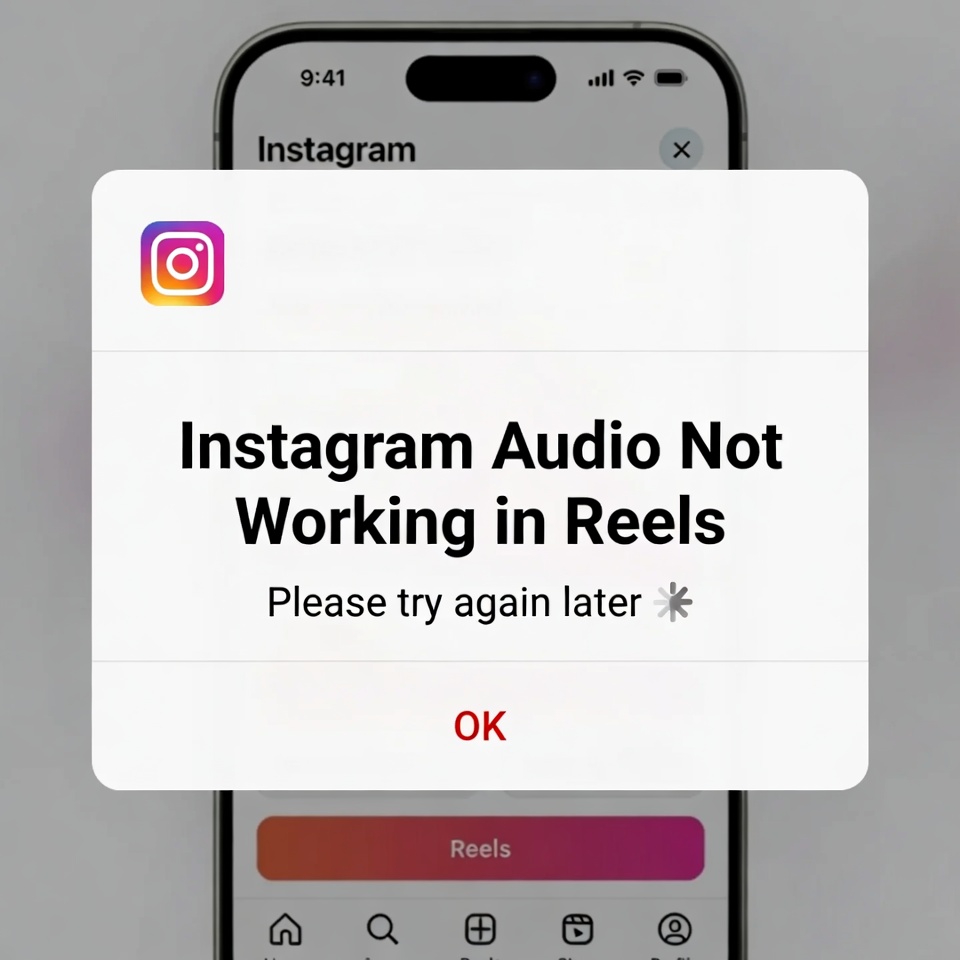
Instagram Reels are all about sound, so when audio suddenly stops working, it can be incredibly frustrating.
You might notice that Reels play without sound, audio cuts out randomly, or music won’t load at all—even though your volume is up and other apps work just fine.
This issue usually isn’t caused by a single reason. In most cases, it’s related to app bugs, outdated versions, permission problems, or temporary server-side glitches on Instagram’s end.
Below, we’ll break down the most common reasons why Instagram audio doesn’t work in Reels and show you step-by-step fixes you can try right now.
Common Reasons Why Instagram Reels Audio Is Not Working
1. App Sound Muted Inside Instagram
Instagram has its own in-app audio controls. Even if your phone volume is high, Reels can still be muted.
Fix:
- Tap the screen once while watching a Reel
- Make sure the speaker icon is not muted
- Try adjusting volume while the Reel is playing
2. Instagram App Is Outdated
Older app versions often cause audio bugs, especially after Instagram rolls out new Reels features.
Fix:
- Open the App Store or Google Play
- Update Instagram to the latest version
- Restart the app after updating
3. Missing Microphone or Audio Permissions
If Instagram doesn’t have permission to access your microphone or audio output, Reels sound may fail.
Fix (Android & iOS):
- Go to Settings > Apps > Instagram > Permissions
- Enable Microphone and Media / Audio
- Reopen Instagram and test Reels again
4. Bluetooth or External Audio Devices
Connected Bluetooth headphones, car systems, or speakers can silently redirect Instagram audio.
Fix:
- Turn off Bluetooth
- Disconnect any external audio device
- Play a Reel again to check sound
5. Data Saver or Low Data Mode
Instagram’s data-saving features can block or delay audio loading in Reels.
Fix:
- Go to Instagram Settings > Data Usage
- Disable Data Saver
- Switch to Wi-Fi if possible
6. Cache or Temporary App Data Issues (Android)
Corrupted cache files can break audio playback.
Fix (Android):
- Settings > Apps > Instagram
- Tap Storage
- Select Clear Cache (not Clear Data)
7. Instagram Server Issues
Sometimes the problem isn’t on your phone at all. Instagram audio features can temporarily fail due to server-side issues.
Fix:
- Check if Reels audio works on another account or device
- Wait a few hours and try again
- Avoid reinstalling immediately if many users report the same issue
Final Thoughts
When Instagram audio isn’t working in Reels, the cause is usually something simple—like muted in-app sound, outdated software, or permission conflicts.
Try the fixes above in order, and in most cases, sound should return within minutes.
If none of these solutions work, reinstalling the app or waiting for the next Instagram update is often the final fix.


