

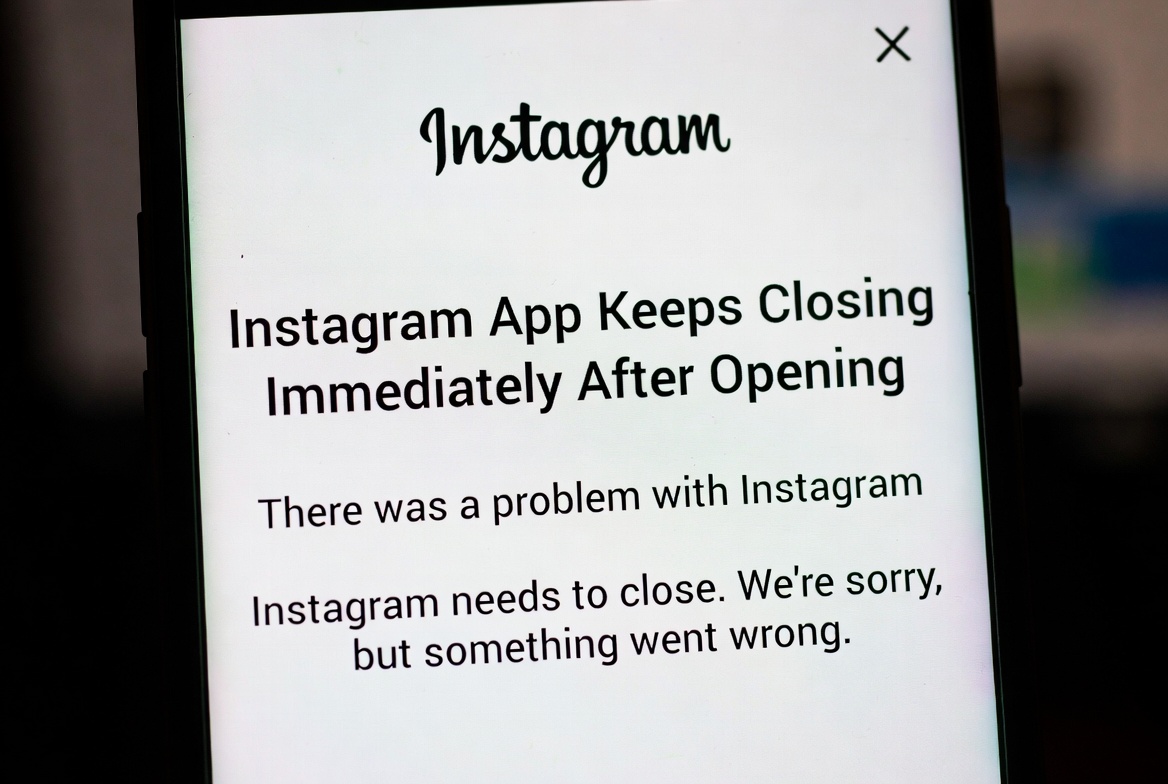
If Instagram opens and immediately closes on your device, this guide is for you.
In this article, you’ll learn the exact reasons why the Instagram app crashes right after launch and discover step-by-step solutions that work on both Android and iPhone.
From corrupted app data to system-level conflicts, we’ll walk you through the most effective fixes to get Instagram running normally again.
Why Does Instagram Keep Closing After Opening?
There isn’t just one reason behind this problem. Some of the most common causes include:
- A buggy or outdated Instagram app version
- Corrupted app cache or data
- Compatibility issues after a system update
- Low storage or memory problems
- Conflicts with other apps running in the background
Identifying the cause helps you apply the right fix faster.
How to Fix Instagram Closing Immediately (Step-by-Step)
1. Restart Your Phone
It sounds simple, but restarting your device clears temporary glitches and memory issues that can cause apps to crash.
2. Update Instagram
An outdated version of Instagram may not work properly with your current operating system.
- Open Google Play Store or App Store
- Search for Instagram
- Tap Update if available
3. Clear Cache (Android Only)
Corrupted cache files are one of the most common reasons Instagram crashes on Android.
- Go to Settings → Apps → Instagram
- Tap Storage
- Select Clear Cache
⚠️ Do not clear data unless necessary, as it may log you out.
4. Free Up Storage Space
When your phone is low on storage, apps may fail to launch properly.
- Delete unused apps
- Remove large files or videos
- Clear unnecessary downloads
Instagram needs free space to run smoothly.
5. Reinstall the Instagram App
If nothing else works, a fresh installation often solves the problem.
- Uninstall Instagram
- Restart your phone
- Reinstall Instagram from the official store
This removes corrupted files completely.
6. Check for System Updates
System-level bugs can also cause apps to close instantly.
- Go to Settings → Software Update
- Install any available updates
After updating, try opening Instagram again.
When Should You Contact Support?
If Instagram still closes immediately after opening even after trying all fixes above, the issue may be related to:
- A widespread Instagram bug
- Temporary server-side problems
- Device-specific compatibility issues
In this case, waiting for an official update is usually the only solution.
Final Thoughts
When Instagram keeps closing immediately after opening, it’s usually caused by a minor software issue rather than a serious problem. In most cases, updating the app, clearing cache, or reinstalling Instagram fixes it quickly. Try each solution step by step, and you’ll likely be back to scrolling in no time.


