

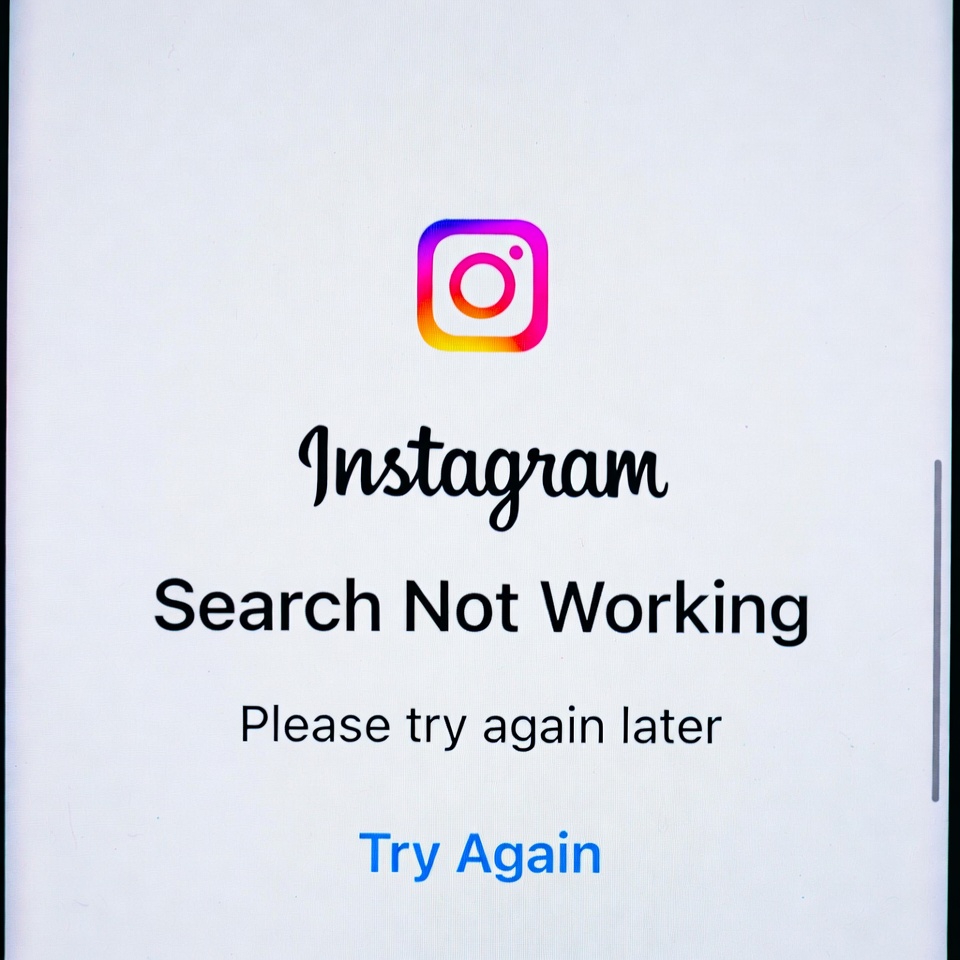
Instagram search not working is a common issue many users face when trying to find accounts, hashtags, or content. Sometimes the search page doesn’t load, results don’t appear, or Instagram shows an error message.
In this guide, we’ll explain why Instagram search is not working and show you effective fixes to solve the problem.
Why Is Instagram Search Not Working?
There are several reasons why Instagram search may stop working properly. Below are the most common causes:
1. Instagram Server Issues
Sometimes the problem isn’t your device. Instagram servers may be temporarily down or experiencing outages, which can affect search functionality.
2. Outdated Instagram App
Using an old version of Instagram can cause bugs, including search not loading or showing incomplete results.
3. Cache or App Data Problems
Corrupted cache or app data may prevent Instagram search from working correctly, especially on Android devices.
4. Poor Internet Connection
A slow or unstable internet connection can stop Instagram from loading search results properly.
5. Temporary Account Restrictions
If Instagram detects unusual activity, your account may be temporarily restricted, which can limit search features.
6. Bugs After Updates
New Instagram updates sometimes introduce bugs that affect search, explore, or hashtag results.
How to Fix Instagram Search Not Working
Follow these solutions step by step to fix the issue:
1. Check Instagram Server Status
Before trying anything else, check if Instagram is down globally. If servers are offline, you’ll need to wait until the issue is resolved.
2. Update the Instagram App
Go to the App Store or Google Play Store and make sure you’re using the latest version of Instagram.
3. Clear Instagram Cache (Android)
- Open Settings
- Go to Apps > Instagram
- Tap Storage
- Select Clear Cache
This often fixes search-related issues.
4. Log Out and Log Back In
Logging out and back into your account can refresh your session and fix temporary glitches.
5. Restart Your Device
A simple restart can clear background issues affecting Instagram search.
6. Switch Internet Connection
Try switching from Wi-Fi to mobile data or vice versa to rule out connection problems.
7. Reinstall Instagram
If none of the above works, uninstall Instagram and reinstall it from the official app store.
When Will Instagram Search Start Working Again?
If the issue is caused by Instagram servers or a global bug, search will usually start working again within a few hours. If it’s a local issue, the fixes above should resolve the problem immediately.


