

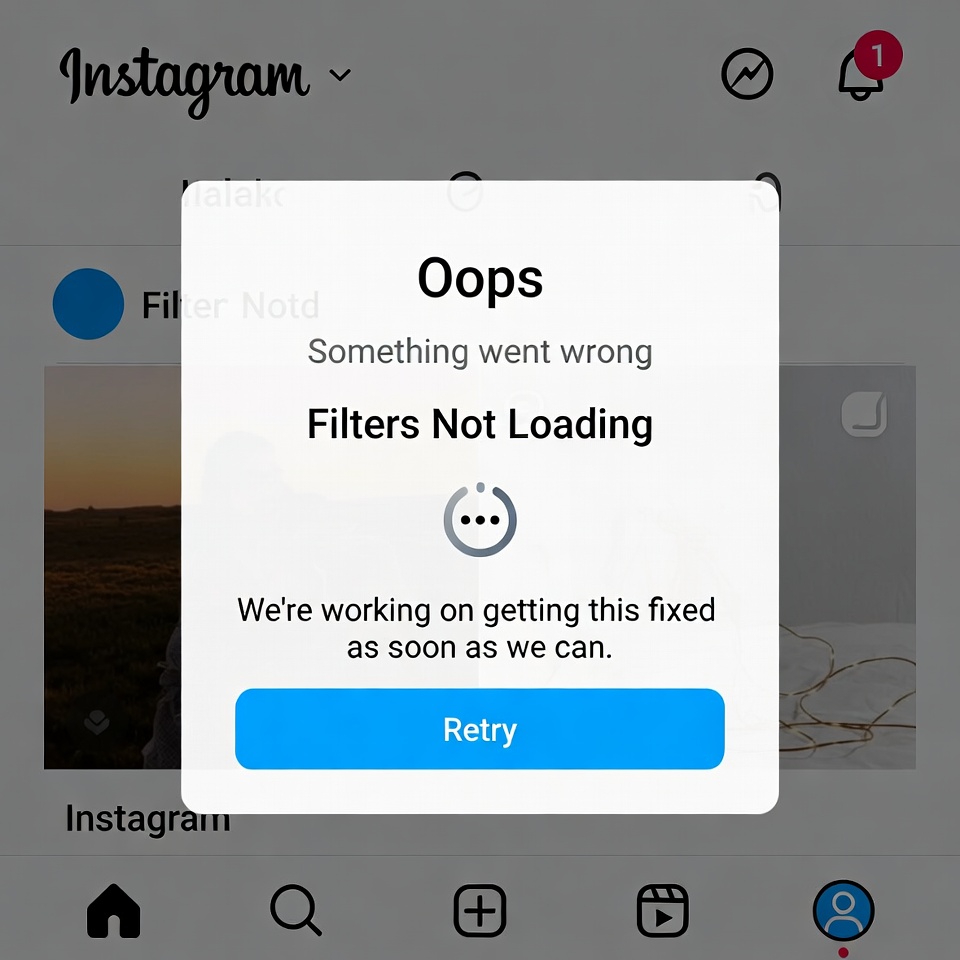
If Instagram filters don’t load, appear blank, or fail to show up in Stories or Reels, the issue is usually caused by network problems, corrupted app data, outdated app versions, or temporary Instagram server issues. The fixes below solve this problem in most cases.
How to Fix Instagram Filters Not Loading
1. Check Your Internet Connection
- Switch between Wi-Fi and mobile data
- Make sure your connection is stable
- Avoid VPNs or unstable networks
2. Restart Instagram
- Close Instagram completely
- Reopen the app and check filters again
3. Update Instagram
- Open App Store or Google Play Store
- Update Instagram to the latest version
- Restart the app after updating
4. Clear Instagram Cache (Android)
- Settings > Apps > Instagram
- Tap Storage
- Select Clear Cache (not Clear Data)
5. Log Out and Log Back In
- Go to Instagram Settings
- Log out of your account
- Log back in and test filters
6. Disable Data Saver Mode
- Instagram Settings > Data Usage
- Turn off Data Saver
- Reload Stories or Reels
7. Check Camera and Storage Permissions
- Settings > Apps > Instagram > Permissions
- Make sure Camera and Storage / Media are allowed
8. Turn Off VPN or Ad Blockers
- Disable any VPN or ad-blocking apps
- Restart Instagram and check filters again
9. Check Instagram Server Status
- If filters fail for many users, it may be a server-side issue
- Wait and try again later
10. Reinstall Instagram
- Uninstall Instagram
- Restart your phone
- Reinstall the app and log in again


