

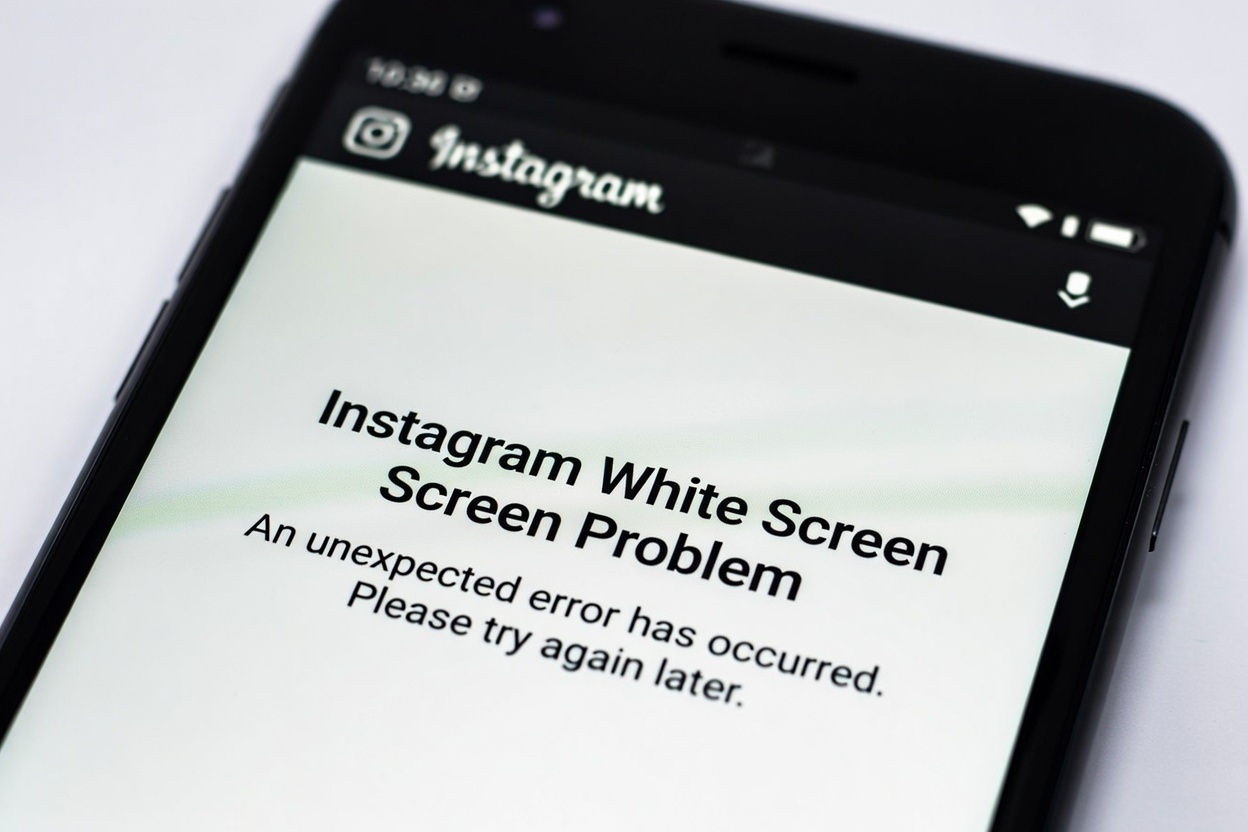
If Instagram opens to a white screen and nothing else happens, it can feel like the app is completely stuck.
You might see a blank white page with no feed, no buttons, and no error message — just an app that refuses to load.
In this post, we’ll look at why the Instagram white screen problem happens and walk through simple, practical fixes you can try on both Android and iPhone.
Why Does Instagram Show a White Screen?
A white screen usually means Instagram starts loading but fails to display its content.
This can happen for several reasons, often related to loading, cache, or system issues.
Temporary App Loading Errors
Sometimes Instagram gets stuck while loading its interface, resulting in a blank white screen.
Corrupted Cache or App Data
Damaged cache files can prevent the app from showing content properly, especially on Android.
Internet Connection Issues
A slow or unstable connection may stop Instagram from fully loading, leaving a white screen behind.
Outdated App or System Version
Older versions of Instagram or your device’s operating system can cause compatibility problems.
Account or Login Issues
Login-related problems can also trigger a white screen instead of the normal feed or login page.
How to Fix the Instagram White Screen Problem
Follow these steps in order. Most users don’t need to try all of them.
1. Force Close and Reopen Instagram
Close the app completely, wait a few seconds, then open it again.
2. Restart Your Phone
Restarting clears temporary system issues that may be affecting Instagram.
3. Check Your Internet Connection
Switch between Wi-Fi and mobile data to see if the issue is connection-related.
4. Clear Instagram Cache (Android)
- Go to Settings
- Tap Apps
- Select Instagram
- Tap Storage
- Choose Clear Cache
This won’t delete your account data.
5. Update Instagram
Open the App Store or Google Play Store and install the latest version of Instagram.
If the White Screen Issue Continues
Reinstall Instagram
Uninstall Instagram, restart your phone, then reinstall the app from the official store.
Try Logging In From Another Device
Log into your account using another phone or a web browser to check for account-related issues.
Update Your Device Software
System updates often include fixes that improve app compatibility and stability.
When Will Instagram Start Working Again?
If the white screen is caused by a temporary Instagram bug or server issue, it usually resolves within a few hours.
Device-related issues can often be fixed immediately using the steps above.


