

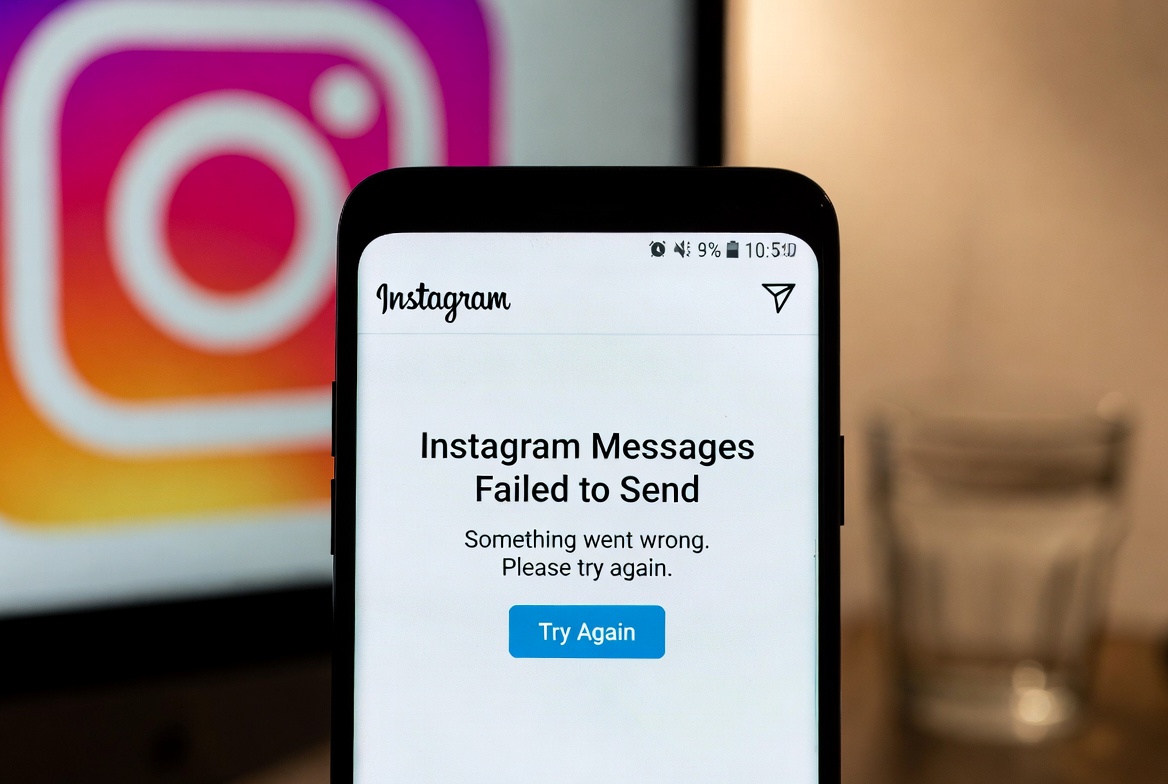
Instagram Messages Failed to Send – Error Explained
Seeing the “Messages Failed to Send” error on Instagram can stop your conversations completely. This issue usually appears due to connection problems, account limits, or temporary app glitches on both Android and iPhone.
Below is a clear explanation of why this error happens and how to fix it.
What the Error Looks Like
- “Messages Failed to Send” warning
- Red exclamation mark next to messages
- Messages stuck or instantly failing
- DMs not delivering to one or multiple users
Why This Happens
This error can occur for several reasons:
- Unstable or slow internet connection
- Temporary messaging limits on your account
- Instagram server outages
- You are blocked or restricted by the recipient
- Outdated Instagram app version
- VPN or proxy interference
How to Fix Instagram Messages Failed to Send
1. Check Your Internet Connection
- Switch between Wi-Fi and mobile data
- Restart your router
- Enable Airplane Mode for 10 seconds, then disable it
2. Test Messaging Another User
If the issue happens with only one person:
- You may be blocked
- The user may have disabled message requests
- Their account could be inactive
3. Log Out and Log Back In
- Instagram → Settings
- Log out of your account
- Restart your phone
- Log back in and test messages
4. Avoid Instagram Action Limits
Sending too many messages too quickly can trigger limits.
What to do:
- Stop sending DMs for 24–48 hours
- Avoid copy-pasting the same message
- Reduce automated or repetitive actions
5. Update Instagram
- Go to the App Store or Google Play Store
- Install the latest version of Instagram
6. Disable VPN or Proxy
VPNs may block Instagram messaging features.
- Turn off VPN
- Restart Instagram
- Try sending messages again
7. Clear Cache (Android Only)
- Settings → Apps → Instagram
- Storage → Clear Cache
8. Reinstall Instagram
If the issue persists:
- Uninstall Instagram
- Restart your device
- Reinstall and log in
Extra Tips
- Avoid sending links too frequently
- Do not mass-message multiple users
- Check if Instagram DMs work on another device
- Wait if Instagram servers are temporarily down
Final Thoughts
The “Messages Failed to Send” error is usually temporary and related to limits or connectivity. In most cases, waiting a few hours and following the steps above will restore full messaging access.


