

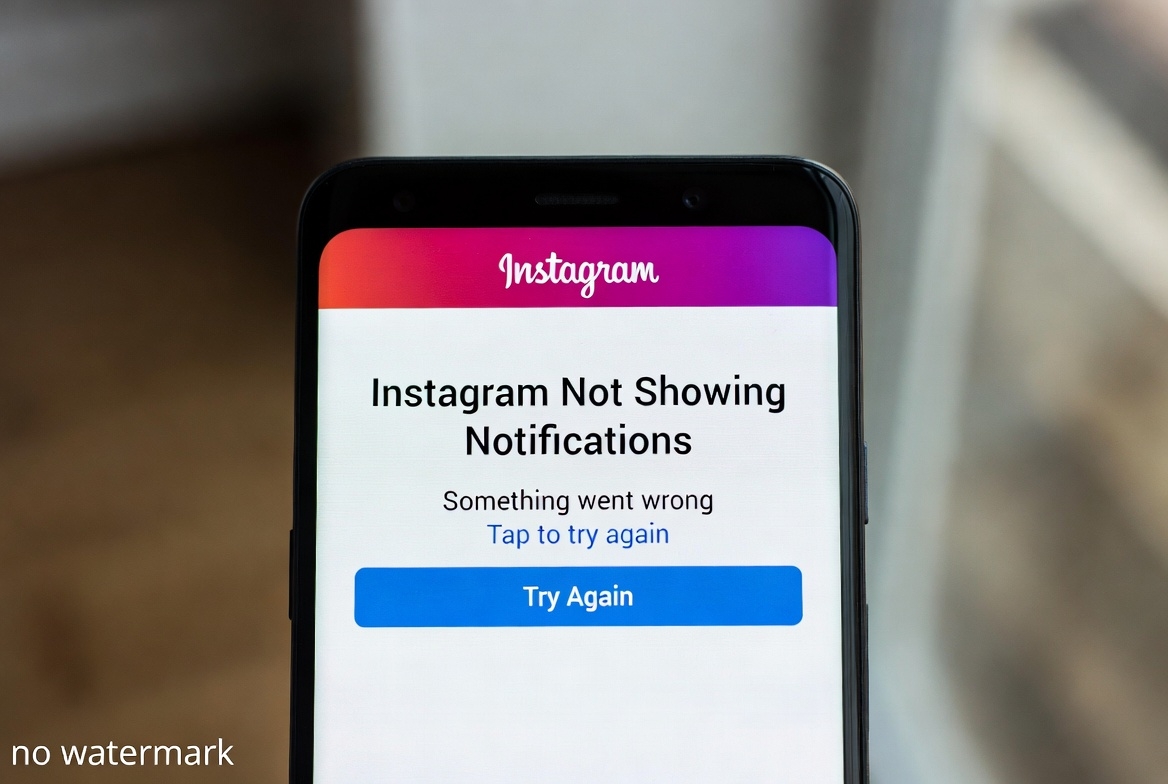
If Instagram notifications are not showing up on your phone, you’re not alone. This is a common issue on both Android and iPhone and is usually caused by app settings, system restrictions, or background limitations.
Below is a clear, step-by-step guide to fix Instagram notification problems.
What the Error Looks Like
- No push notifications for likes, comments, DMs, or follows
- Notifications arrive late or only when the app is opened
- Instagram notifications completely silent
Why This Happens
Instagram notifications may stop working because of:
- Notifications disabled in Instagram settings
- Phone-level notification permissions turned off
- Battery optimization blocking background activity
- Data saver or background data restrictions
- Outdated Instagram app version
- Temporary Instagram server issues
How to Fix Instagram Notifications Not Showing
1. Enable Notifications Inside Instagram
- Open Instagram
- Go to Profile → Menu (☰) → Notifications
- Make sure all important options are turned ON
- Messages
- Likes & comments
- Stories
- Live videos
2. Check Phone Notification Permissions
On Android:
- Go to Settings → Apps → Instagram → Notifications
- Enable Allow notifications
- Turn on Lock screen, Pop-up, and Background alerts
On iPhone:
- Go to Settings → Notifications → Instagram
- Enable Allow Notifications
- Select Lock Screen, Banners, and Sounds
3. Disable Battery Optimization (Very Important)
Android:
- Settings → Battery → App battery usage
- Find Instagram
- Set it to Unrestricted
Battery saver modes often block Instagram notifications.
4. Allow Background Data
Android:
- Settings → Apps → Instagram → Mobile data
- Enable Allow background data
iPhone:
- Settings → Instagram
- Enable Background App Refresh
5. Log Out and Log Back In
This refreshes your session and often restores notifications.
- Instagram → Settings → Log Out
- Restart your phone
- Log back in
6. Update Instagram
Outdated versions can break notification delivery.
- Update Instagram from Google Play Store or App Store
7. Clear Cache (Android Only)
- Settings → Apps → Instagram
- Storage → Clear Cache
- Reopen Instagram
8. Reinstall Instagram
If nothing else works:
- Uninstall Instagram
- Restart your phone
- Reinstall and log in again
Extra Tips
- Turn off Do Not Disturb / Focus Mode
- Make sure Low Power Mode is disabled
- Check if notifications work on Wi-Fi vs mobile data
- Follow Instagram’s official account to test alerts
Final Thoughts
Instagram notifications not showing is usually a settings or battery-related issue, not a serious app error. Following the steps above fixes the problem for most users within minutes.


