

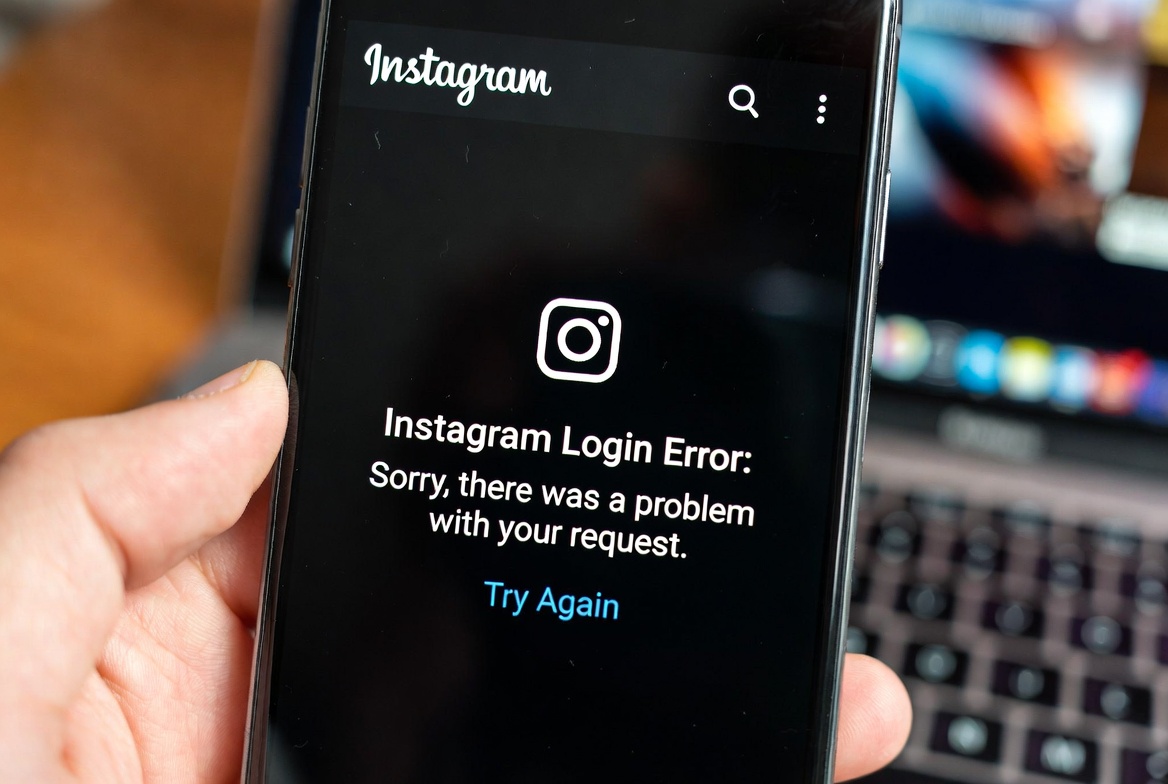
What Does This Error Mean?
The “Sorry there was a problem with your request” error usually appears when Instagram blocks a login attempt temporarily.
It can be caused by suspicious activity, IP issues, corrupted app data, or account security checks.
This error often happens even if your username and password are correct.
Common Reasons for This Instagram Login Error
1. Too Many Login Attempts
If you tried to log in multiple times in a short period, Instagram may temporarily block the request.
2. IP Address or Network Issues
Logging in from a VPN, proxy, or frequently changing networks can trigger Instagram’s security systems.
3. Corrupted App Cache or Data
Outdated or corrupted app data may prevent Instagram from processing your login request.
4. Account Flagged for Suspicious Activity
Using automation tools, third-party apps, or rapid actions (likes, follows) can cause this error.
5. Instagram Server Problems
Sometimes the issue is not on your side. Instagram’s servers may be experiencing temporary outages.
How to Fix “Sorry There Was a Problem with Your Request”
Step 1: Wait and Try Again Later
If the error appeared after multiple login attempts:
- Wait 12–24 hours
- Do not try logging in repeatedly during this time
This alone fixes the issue for many users.
Step 2: Disable VPN or Proxy
If you are using:
- VPN
- Proxy
- Public Wi-Fi
Turn it off and switch to a stable mobile data or home Wi-Fi connection.
Step 3: Clear Instagram Cache (Android)
- Go to Settings → Apps → Instagram
- Tap Storage
- Select Clear Cache
- Restart your phone and try again
Step 4: Reinstall the Instagram App
- Uninstall Instagram
- Restart your device
- Download the latest version from the App Store or Google Play
- Log in again
Step 5: Try Logging In from a Browser
Open:
- instagram.com
Log in using a desktop or mobile browser.
If login works in the browser but not in the app, the issue is app-related.
Step 6: Reset Your Password
Even if your password is correct:
- Tap Forgot Password
- Reset it using email or phone number
- Wait a few minutes before trying to log in again
Step 7: Remove Third-Party Apps
If you have connected:
- Automation tools
- Follower apps
- Analytics tools
Remove their access immediately.
These tools commonly trigger this error.
How Long Does This Error Last?
In most cases:
- Temporary block: 12–48 hours
- Security flag: Up to a few days
Avoid repeated login attempts, or the block may last longer.
How to Prevent This Error in the Future
- Avoid VPNs while logging in
- Do not use third-party Instagram tools
- Limit rapid actions (follows, likes, comments)
- Keep the app updated
- Use a consistent device and network
A Quick Final Note
This error is frustrating, but it usually does not mean your account is banned.
Most users regain access by waiting, switching networks, or reinstalling the app.
If none of the solutions work after several days, contacting Instagram support may be necessary.


